285 lines
11 KiB
Markdown
285 lines
11 KiB
Markdown
# Responsive HTML email signature(s)
|
|
|
|
[](https://www.npmjs.com/package/responsive-html-email-signature)
|
|
[](/LICENSE)
|
|
[](https://github.com/danmindru/responsive-html-email-signature/actions)
|
|
|
|
### Let's punch email clients in the stomach 👊
|
|
|
|
When you need some basic responsive email signatures that work on mobile.<br/>
|
|
...and your colleagues need them too.<br/>
|
|
...but you don't want to deal with tables and inline styles.
|
|
|
|
[Read the docs in other languages](/i18n) ↗️
|
|
|
|
## Preview
|
|
|
|
Here are some examples:
|
|

|
|

|
|
|
|
## Getting started
|
|
|
|
- Clone repo `git clone https://github.com/danmindru/responsive-html-email-signature.git`
|
|
- Run `npm install`
|
|
- Run `npm start` to generate templates from configuration. This will continue to watch your files and re-make the template until you exit.
|
|
|
|
### Customizing templates
|
|
|
|
- Edit files in _/templates_
|
|
- Open files from `./dist` in your fav browser to check them out
|
|
|
|
> When you're done, check out [how to add them to your email client of choice](#usage-with-different-email-clients) if in doubt.
|
|
|
|
## Motivation
|
|
|
|
Writing HTML emails & email signatures sucks. Let's make it easier. We can't fix all email clients, but we can surely make our lives easier with some automation. <br/>
|
|
|
|
## What does this pile of code do
|
|
|
|
- [x] generates email templates from your config
|
|
- [x] allows generating multiple templates at once (for your colleagues too!)
|
|
- [x] transforms linked (`<link>`) CSS into inline styles
|
|
- [x] embeds local `img[src]` into the template (base64).\*
|
|
- [x] minifies the template
|
|
- [x] ads some basic media queries for mail clients that support them
|
|
- [x] can build templates from multiple sources
|
|
- [x] watches HTML / CSS files for changes and re-builds
|
|
- [x] supports LESS / SASS / PostCSS
|
|
- [x] autoprefixer, so you don't have to worry about your `-moz-`s or `-webkit-`s
|
|
- [x] linting, checks for used template config parameters and more!
|
|
|
|
\*_Some mail clients might have [hard limits](https://support.google.com/a/answer/176652?hl=en) regarding the email size, so don't include large images if possible. If you need to, use a URL instead and host the image somewhere else._
|
|
|
|
## Docs
|
|
|
|
### Installing
|
|
|
|
```bash
|
|
$ npm install
|
|
$ npm start # By default, templates will be created in `./dist` and HTML & CSS files in './templates' will be watched for changes.
|
|
```
|
|
|
|
> Note: works well with node v10+. Earlier and later versions might also work.
|
|
|
|
### Configuring
|
|
|
|
To make a basic email from existing templates, you only have to edit the `conf.json` file in each template.
|
|
|
|
For example, the dark template accepts the following:
|
|
|
|
```json
|
|
{
|
|
"id": "<will-be-used-for-filename>",
|
|
"signature": "<signature-of-choice>",
|
|
"name": "<your-name>",
|
|
"contactMain": "<phone-or-email-or-html>",
|
|
"contactMail": "<email>",
|
|
"slogan": "<a-basic-slogan>",
|
|
"logoUrl": "</assets/dark.png?>",
|
|
"logoAlt": "<text-in-case-logo-is-blocked>",
|
|
"website": "<http://dark.dk>"
|
|
}
|
|
```
|
|
|
|
### Generating multiple emails from the same config (for your colleagues too!)
|
|
|
|
To generate multiple templates, use an array instead of an object in `conf.json`, like so:
|
|
|
|
```json
|
|
[{ ...conf1 }, { ...conf2 }]
|
|
```
|
|
|
|
### Using config values in HTML
|
|
|
|
Config variables are made available in all HTML files. <br/>
|
|
Add any variable to the configuration file and use it in HTML like so:
|
|
|
|
```html
|
|
<p><!-- @echo yourCustomVariable --></p>
|
|
```
|
|
|
|
Where the configuration contains:
|
|
|
|
```json
|
|
{
|
|
"yourCustomVariable": "Custom!"
|
|
}
|
|
```
|
|
|
|
> NB: config variables also accept HTML. That's useful for including links.
|
|
|
|
### Adding CSS & pre-processing
|
|
|
|
Any number of CSS, SASS or LESS files in a template directory & they will be automatically processed & inlined into the files outputed in `./dist`.
|
|
|
|
### Multiple emails in the same template
|
|
|
|
Templates can contain multiple HTML files from which to build emails. For example, the dark template has `signature.html` and `signature-reply.html`, which is a simpler version.
|
|
Each HTML file will be treated as an email template, except for `*.inc.html`. See below ⬇️
|
|
|
|
### Using partials (\*.inc.html)
|
|
|
|
By naming files with `*.inc.html`, they become partials. Partials will not be treated as templates (ignored), but they can be included in any HTML template using the `@include` HTML comment.
|
|
|
|
```html
|
|
<section>
|
|
<!-- @include footer.inc.html -->
|
|
</section
|
|
```
|
|
|
|
Partials are useful if you have bits of HTML that repeat, like headers, footers, etc.
|
|
|
|
### Advanced templating
|
|
|
|
Inside HTML files, any [preprocess directive](https://github.com/jsoverson/preprocess#all-directives) is supported, such as `@if`, `@extend`, `@exec`, etc.
|
|
|
|
## Template structure (examples)
|
|
|
|
There are no rules regarding how to structure templates, but it's a good idea to create directories for a template group. <br/>
|
|
There are 2 examples of template structures, one for the `light` email template and one for the `dark` one.
|
|
|
|
Here's how the dark one is structured:
|
|
|
|
```bash
|
|
./templates
|
|
├── dark
|
|
├── assets
|
|
├── dark.png # Image to embed as base64
|
|
├── conf.json # Template strings, logo, etc.
|
|
├── dark.css # Stylesheet.
|
|
├── footer.inc.html # Contact info & logo
|
|
├── head.inc.html # 'Responsive' CSS goes here
|
|
├── signature.html # Full signature (loads head/footer)
|
|
├── signature-reply.html # Simplified signature (loads head)
|
|
```
|
|
|
|
Here's how the light one is structured:
|
|
|
|
```bash
|
|
./templates
|
|
├── light
|
|
├── assets
|
|
├── light.png # Image to embed as base64
|
|
├── conf.json # Template strings, logo, etc.
|
|
├── footer.inc.html # Contact info & logo
|
|
├── full-mail.html # Body + signature
|
|
├── head.inc.html # 'Responsive' CSS goes here
|
|
├── light.css # Stylesheet.
|
|
├── signature.html # Full signature (loads head/footer)
|
|
├── signature-reply.html # Simplified signature (loads head)
|
|
```
|
|
|
|
There's one convention you have to keep in mind: `all files that you wish to include should follow the *.inc.html format`. The gulp task ignores `*.inc.html` files, but will try to process & create email templates from all `.html` files.
|
|
|
|
You are of course encouraged to change the default structure for your use case.
|
|
|
|
## Overview of the build process
|
|
|
|
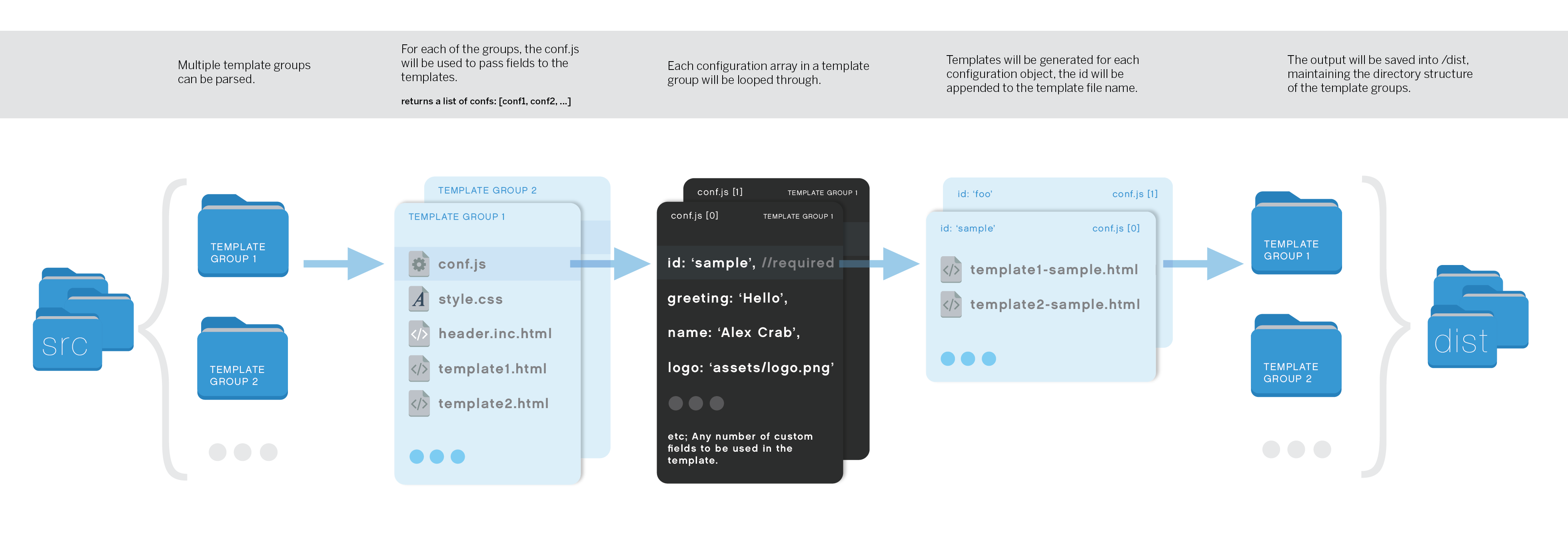
The diagram below shows what happens to your email templates.
|
|
Each folder in 'templates' is considered a `template group`. A template file will be generated for each of the configuration objects you add have in the template group -> `conf.js`.
|
|
|
|
|
|
## CSS Support
|
|
|
|
Remember, it's HTML mails, so you need to check a big-ass table to find out nothing's gonna work.
|
|
See [this](https://www.campaignmonitor.com/css/) for more info. [Gulp-inline-css](https://www.npmjs.com/package/gulp-inline-css) is being used to convert whatever CSS you throw at it to inline styles, but it probably won't handle everything.
|
|
|
|
Some bonuses of using `gulp-inline-css`: many css props will be converted to attributes. For example, the 'background-color' prop will be added as 'bgcolor' attribute to table elements.
|
|
For more details take a look at the [inline-css mappings](https://github.com/jonkemp/inline-css/blob/master/lib/setTableAttrs.js).
|
|
|
|
## Usage with different email clients
|
|
|
|
### Thunderbird
|
|
|
|
There are several Thunderbird plugins which can automatically insert signatures when composing e-mails. We recommend [SmartTemplate4](https://addons.mozilla.org/en-us/thunderbird/addon/smarttemplate4) as one of the options. It can use different templates for new e-mails, replies and forwarded e-mails.
|
|
|
|
### Gmail
|
|
|
|
Go to your mailbox settings & paste the generated signature.
|
|
|
|
> **NB**: Gmail doesn't seem to support inlined (base64) images. You have to use absolute `http(s)//...`.
|
|
|
|
### Office 365 / outlook.live.com
|
|
|
|
It's a bit hacky to set up, but possible. See [this issue](https://github.com/danmindru/responsive-html-email-signature/issues/52).
|
|
|
|
### Apple Mail / OS X (oh boy)
|
|
|
|
#### Solution 1
|
|
|
|
- Open Mail.app and go to `Mail` -> `Preferences` -> `Signatures`
|
|
- Create a new signature and write some placeholder text (doesn't matter what it is, but you have to identify it later).
|
|
- Close Mail.app.
|
|
- Open terminal, then open the signature files using TextEdit (might be different for iCloud drive check the article below).
|
|
|
|
```
|
|
$ open -a TextEdit ~/Library/Mobile\ Documents/com~apple~mail/Data/V3/MailData/Signatures/ubiquitous_*.mailsignature
|
|
```
|
|
|
|
- Keep the file with the placeholder open, close the other ones.
|
|
- Replace the `<body>...</body>` and it's contents with the template of your choice. _Don't remove the meta information at the top!_
|
|
- Open Mail.app and compose a new mail. Select the signature from the list to test it out.
|
|
|
|
> **NB**: Images won't appear in the signature preview, but will work fine when you compose a message.
|
|
|
|
#### Solution 2
|
|
|
|
You can also open the HTML files in `/dist` in a browser, CMD + A, CMD + C and then paste into the signature box. This won't copy the `<html>` part or the `<style>` part that includes media queries. Follow the guide if you want it.
|
|
|
|
#### Troubleshooting
|
|
|
|
If solution #1 doesn't work, you can repeat the steps and lock the signature files before you open Mail.app again.
|
|
Lock Files:
|
|
|
|
```
|
|
$ chflags uchg ~/Library/Mail/V3/MailData/Signatures/*.mailsignature
|
|
```
|
|
|
|
If you want to do changes later, you have to unlock the files:
|
|
|
|
```
|
|
$ chflags nouchg ~/Library/Mail/V3/MailData/Signatures/*.mailsignature
|
|
```
|
|
|
|
If you are using iCloud drive or having problems with it, you might also want to check [this article](http://matt.coneybeare.me/how-to-make-an-html-signature-in-apple-mail-for-el-capitan-os-x-10-dot-11/).
|
|
|
|
### Outlook 2010 Client for Windows 7
|
|
|
|
#### Solution 1
|
|
|
|
- Open Outlook 2010 and go to `File > Option > Mail > Signature`
|
|
- Create new signature (with a placeholder for your convenience)
|
|
- Open signature folder using CMD
|
|
|
|
> As the AppData folder is hidden, I'd recommend you to open it via CMD.
|
|
|
|
```
|
|
cd AppData\Roaming\Microsoft
|
|
start Signatures
|
|
```
|
|
|
|
- Within this folder, find a file named with your placeholder then right click this file and select edit.
|
|
- Replace it with your HTML and save
|
|
- Open Outlook again and check your signature
|
|
|
|
#### Solution 2
|
|
|
|
Unfortnately, Outlook 2010 client dosen't support HTML file import features for your email template. But you can add your own signatures by simple Copy and paste like **Solution 2** above.
|
|
|
|
- Open built html file on `/dist` folder and Ctrl A + C
|
|
- Open Outlook 2010 and go to `File > Option > Mail > Signature`
|
|
- Create new signature and paste copyed one
|
|
|
|
> **NB**: base 64 will not be shown on Outlook 2010 client. So, I recommend to use external url if you want to use images.
|
|
|
|
## Other commands
|
|
|
|
### `npm run test`
|
|
|
|
Runs tests once.
|
|
|
|
### `npm run once`
|
|
|
|
Creates templates and exits; does not watch files.
|